
Getting started
Sign in to Elite Technique, find your way around the screen, and see how a job moves from lead to invoice.
Elite Technique runs your fence business in one place: the leads that come in, the drawings and proposals you send, the jobs your crews install, and the invoices you collect.
Sign in
Section titled “Sign in”-
Open the invitation email your administrator sent you and follow its link to set your password.
-
Sign in at your company’s Elite Technique web address with your email address and that password. Bookmark the address — it is the same every time.
Find your way around
Section titled “Find your way around”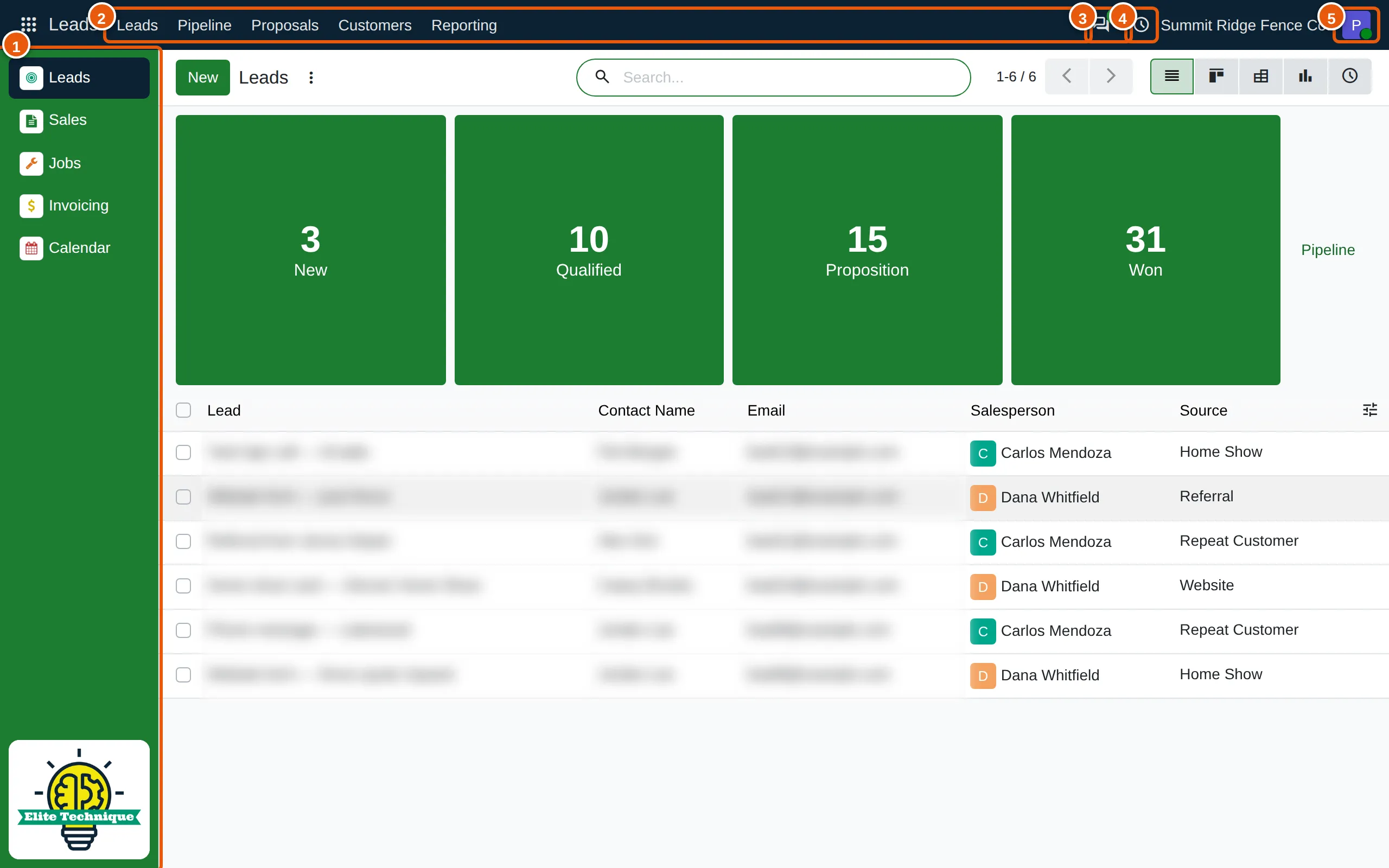
- Your apps. The green bar on the left lists the apps you can use. Click one to open it.
- The app’s menu. The top bar shows the pages of the app you have open — in Leads, for example, Leads, Pipeline, Proposals and Customers.
- Messages. Conversations with your team and notes on your records. The number shows what you have not read.
- Activities. Calls, site visits and follow-ups scheduled for you, with the number due.
- Your profile. My Preferences — your name, email, password and signature — and Log out.
What you see depends on your role
Section titled “What you see depends on your role”Your administrator gives everyone one of four roles. Each role sees only the apps it needs:
| Role | Apps | Opens on |
|---|---|---|
| Admin | Dashboards, Leads, Sales, Jobs, Invoicing, Calendar, System | Dashboards |
| Office | Leads, Sales, Jobs, Invoicing, Calendar | Leads |
| Sales | Leads, Sales, Calendar | Leads |
| Installer | Jobs | Jobs |
A Sales user sees their own leads and proposals; Office and Admin see everyone’s.
How a job moves through Elite Technique
Section titled “How a job moves through Elite Technique”-
Lead — a new inquiry, from your website, a phone call or a home show.
-
Drawing or proposal — open the lead and click Create Drawing to draw the fence on a map, which prices it for you, or Create Proposal to price it by hand. See Create a proposal.
-
Send — email the proposal. Your customer reviews it online, and can sign and pay a deposit there.
-
Contract order — when the customer accepts, click Confirm. The proposal becomes a contract order, and if it includes labor, a job for your installers.
-
Job and invoice — your crew installs the fence, and your office invoices the customer.