
Create a proposal
Price a job by hand from an opportunity, write what your customer reads, preview it as they will see it, and send it.
A proposal is the price you send your customer. Most proposals start from a drawing — draw the fence on the map and Elite Technique prices it for you. This guide covers the other way: a proposal you price by hand, for a repair, a small job, or anything you would rather not draw.
Who can do this: Sales, Office and Admin.
Start the proposal
Section titled “Start the proposal”-
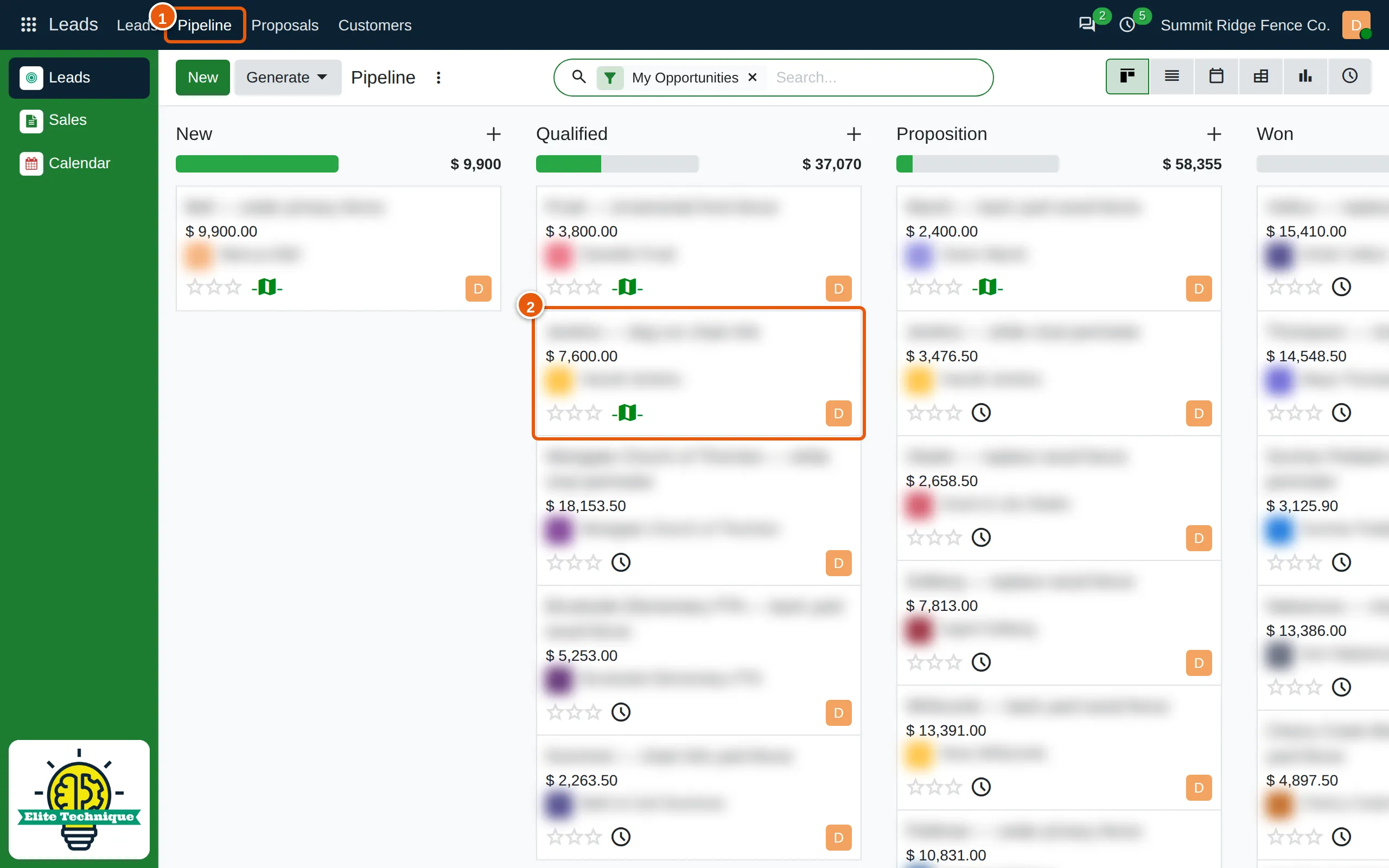
In Leads, click Pipeline (1) in the top bar, then click the opportunity’s card (2).
-
Click Create Proposal (1).
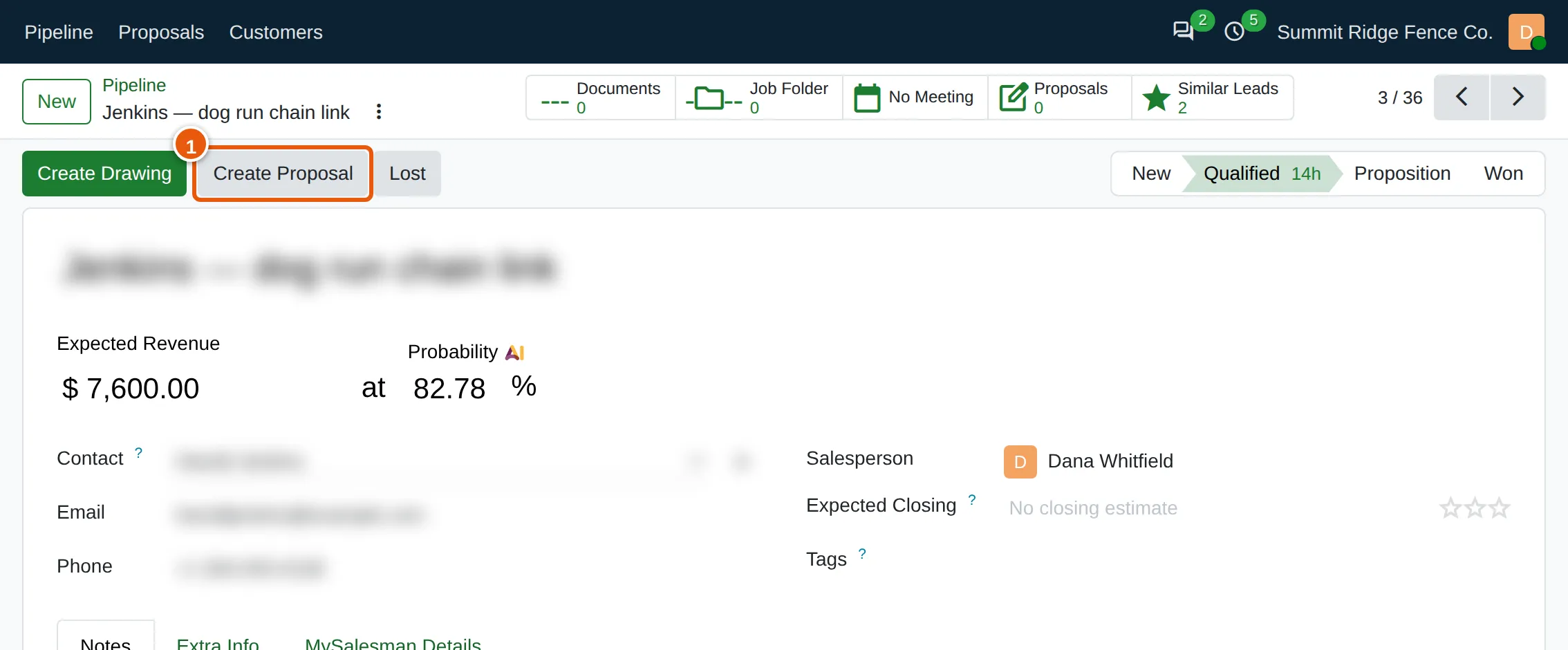
The new proposal opens with the customer and their address already filled in from the opportunity.
-
Check the details on the right:
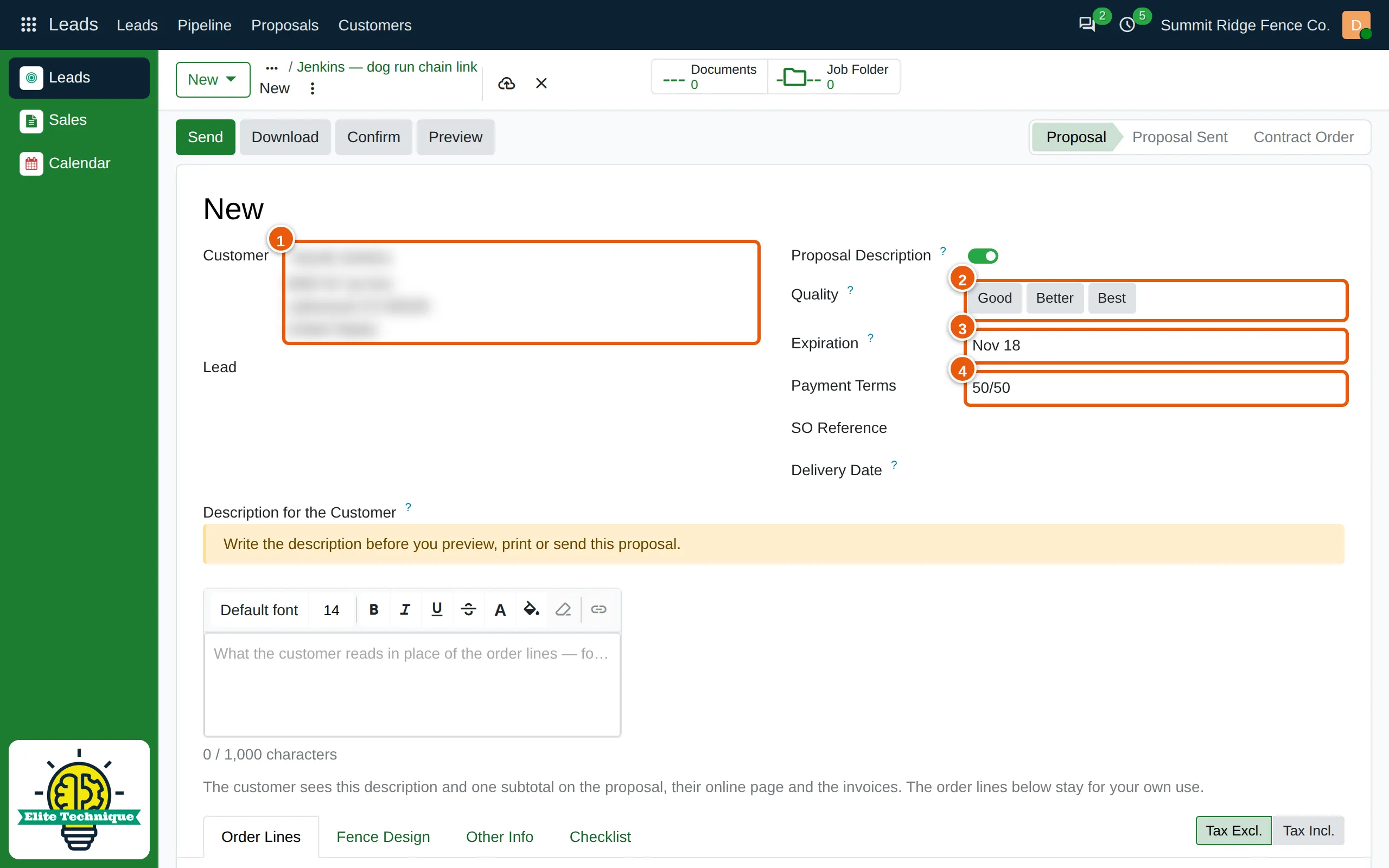
- Customer (1) — who the proposal is for.
- Quality (2) — optional. Mark the proposal Good, Better or Best when you offer your customer more than one option.
- Expiration (3) — the date the price is good until. It is filled in for you.
- Payment Terms (4) — when your customer pays, for example 50/50: half on the invoice date, the rest later.
Write what your customer reads
Section titled “Write what your customer reads”-
Under Description for the Customer, describe the job in your own words (1) — what you will build or repair, and what is included.
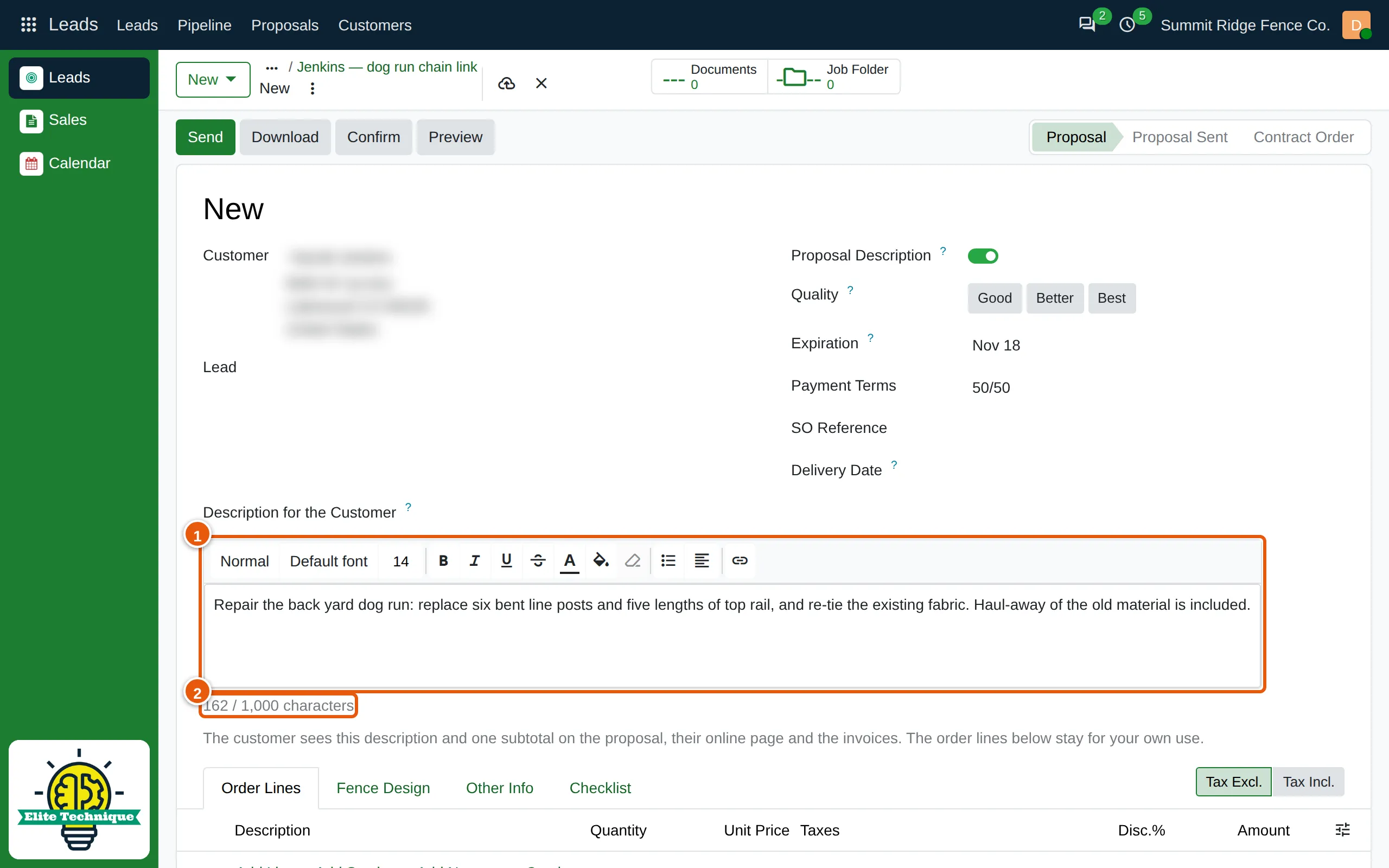
The counter (2) shows how much you have written; the limit is 1,000 characters. Use the toolbar for bold text, headings and bulleted lists.
With Proposal Description switched on — it usually is for a new proposal — your customer sees this description and one total, on the proposal, on their online page and on the invoices. The lines you add next stay for your own use. Switch Proposal Description off to show your customer every line instead.
Add the lines
Section titled “Add the lines”-
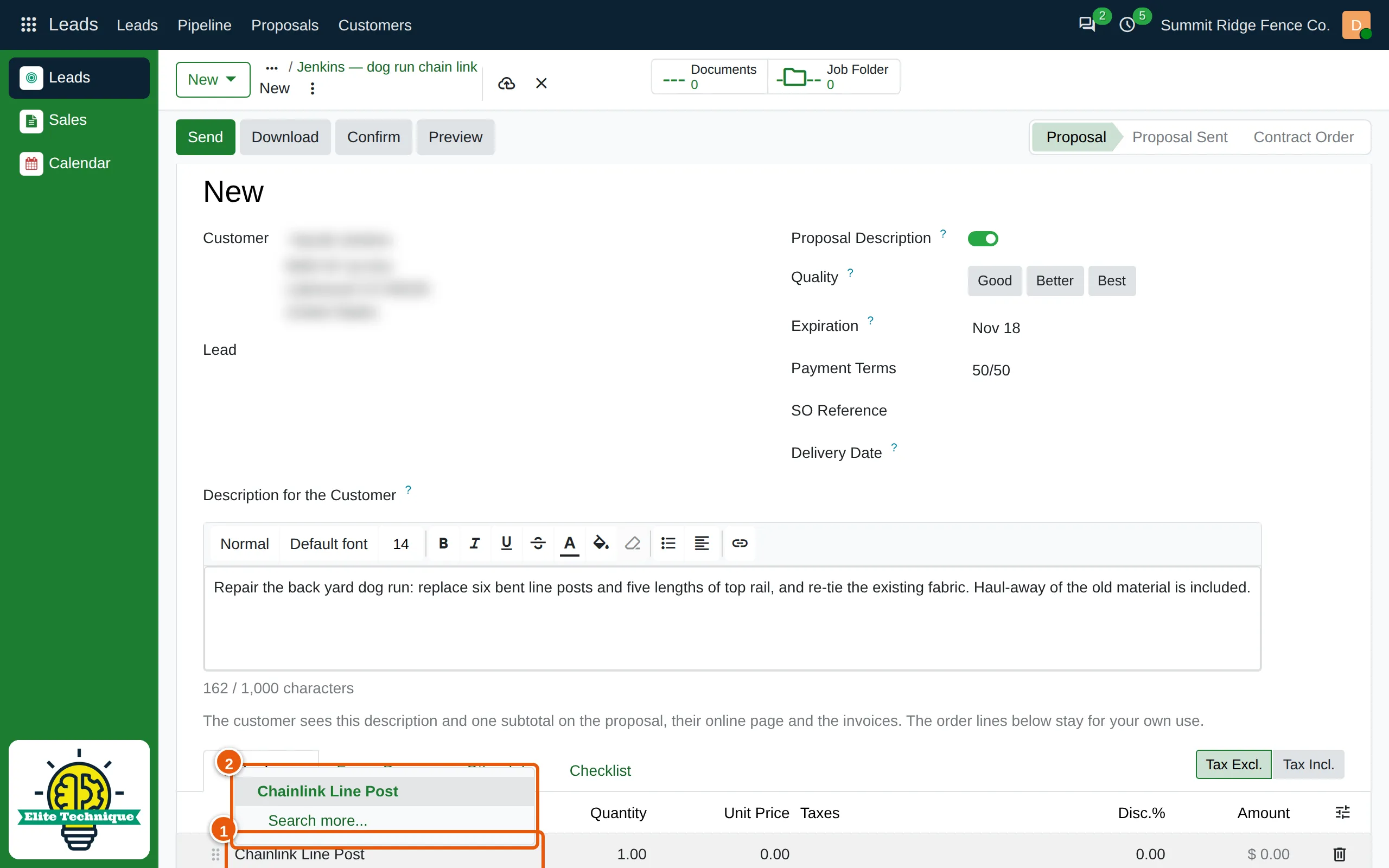
On the Order Lines tab, click Add Line and start typing the item’s name (1). Pick it from the list (2).
-
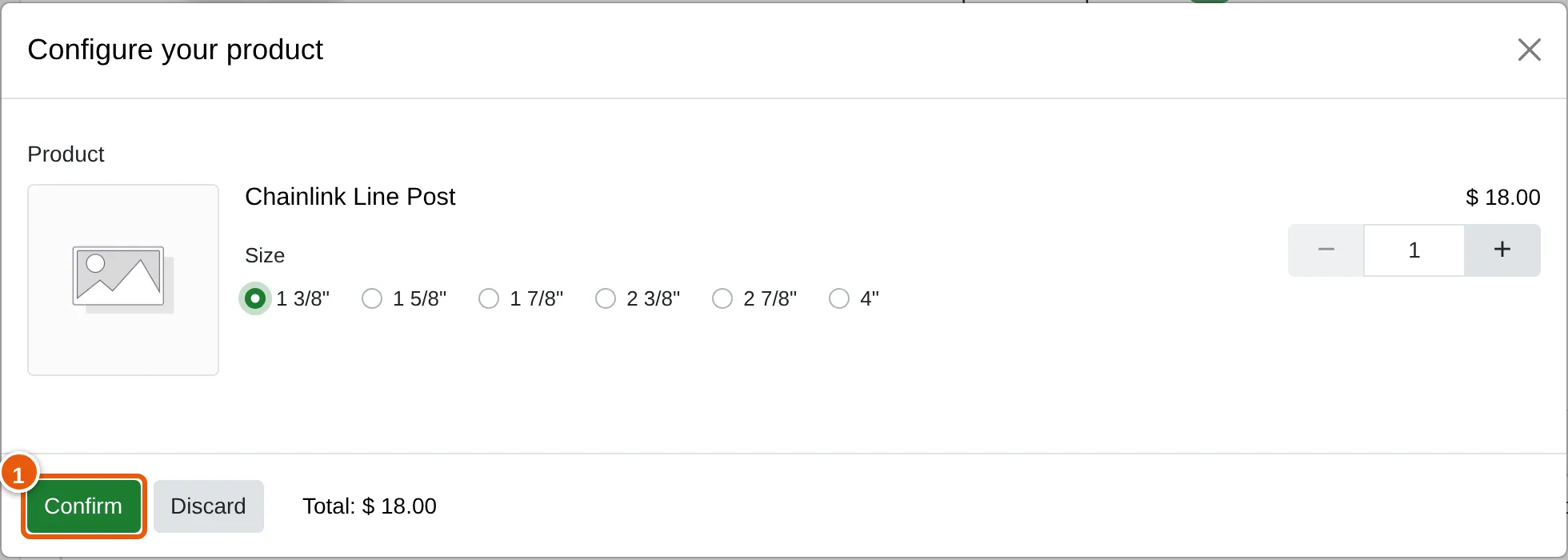
If the item comes in more than one option, a window asks which one. Pick the option, then click Confirm (1).
-
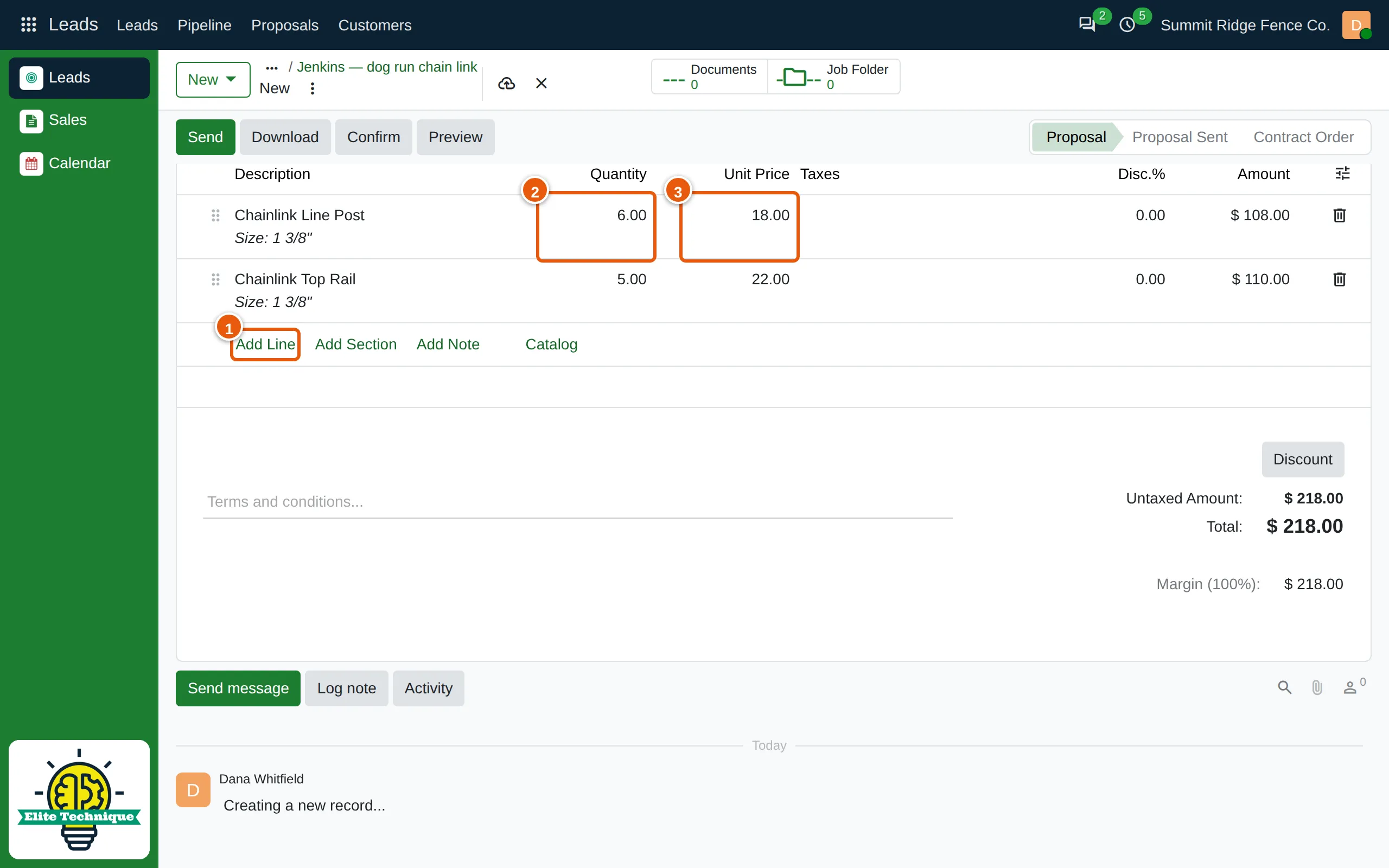
Type the Quantity (2). The Unit Price (3) comes from your catalog — change it if this job needs a different price.
-
Click Add Line (1) again for each further item. The total updates below the lines.
-
Click the cloud icon (1) at the top to save the proposal. It gets its number, such as S00077.

Preview and send
Section titled “Preview and send”-
Click Preview to see the proposal as your customer will. It opens in a new tab.
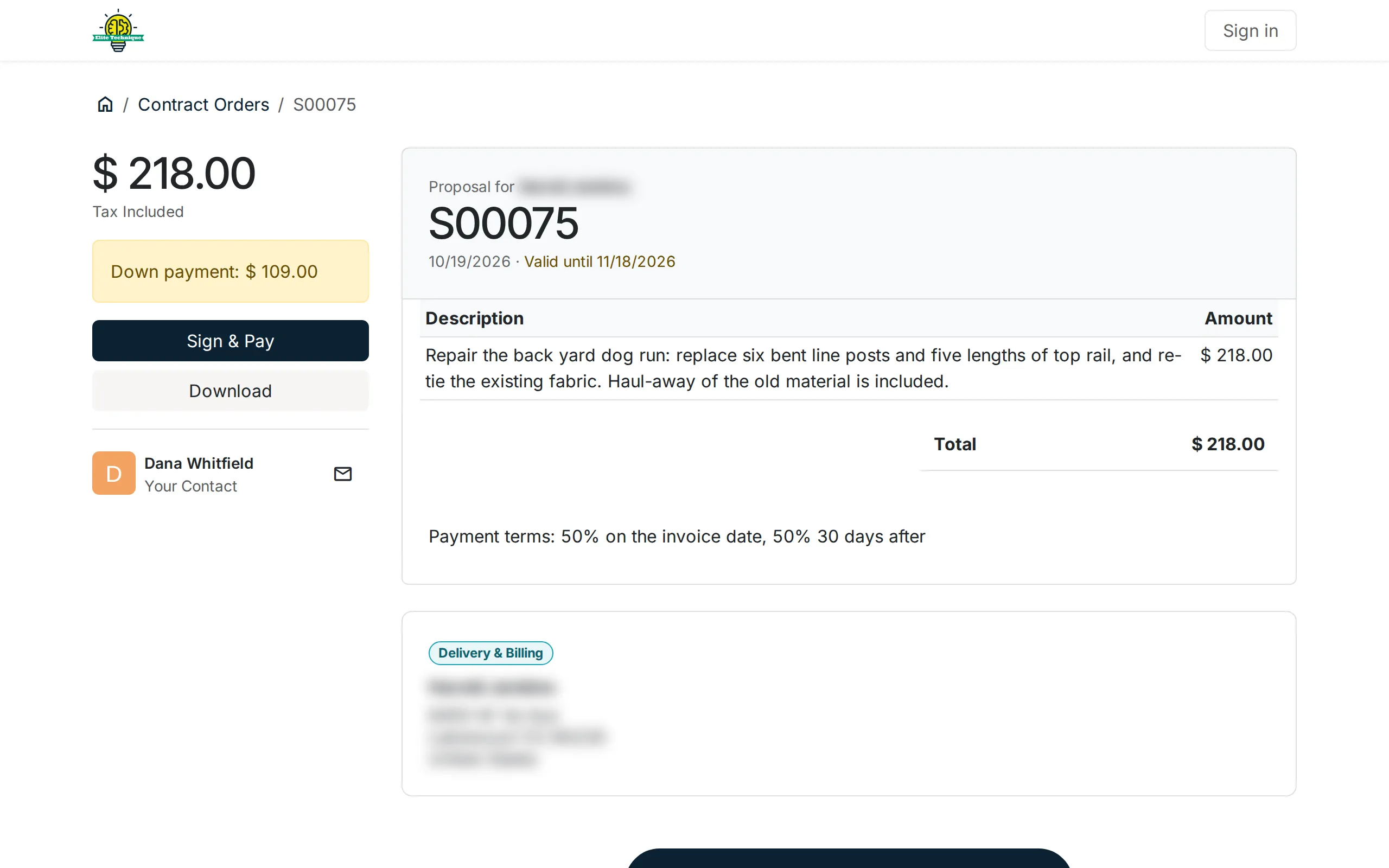
Your customer can sign and pay the deposit from this page, download the PDF, or reject the proposal.
-
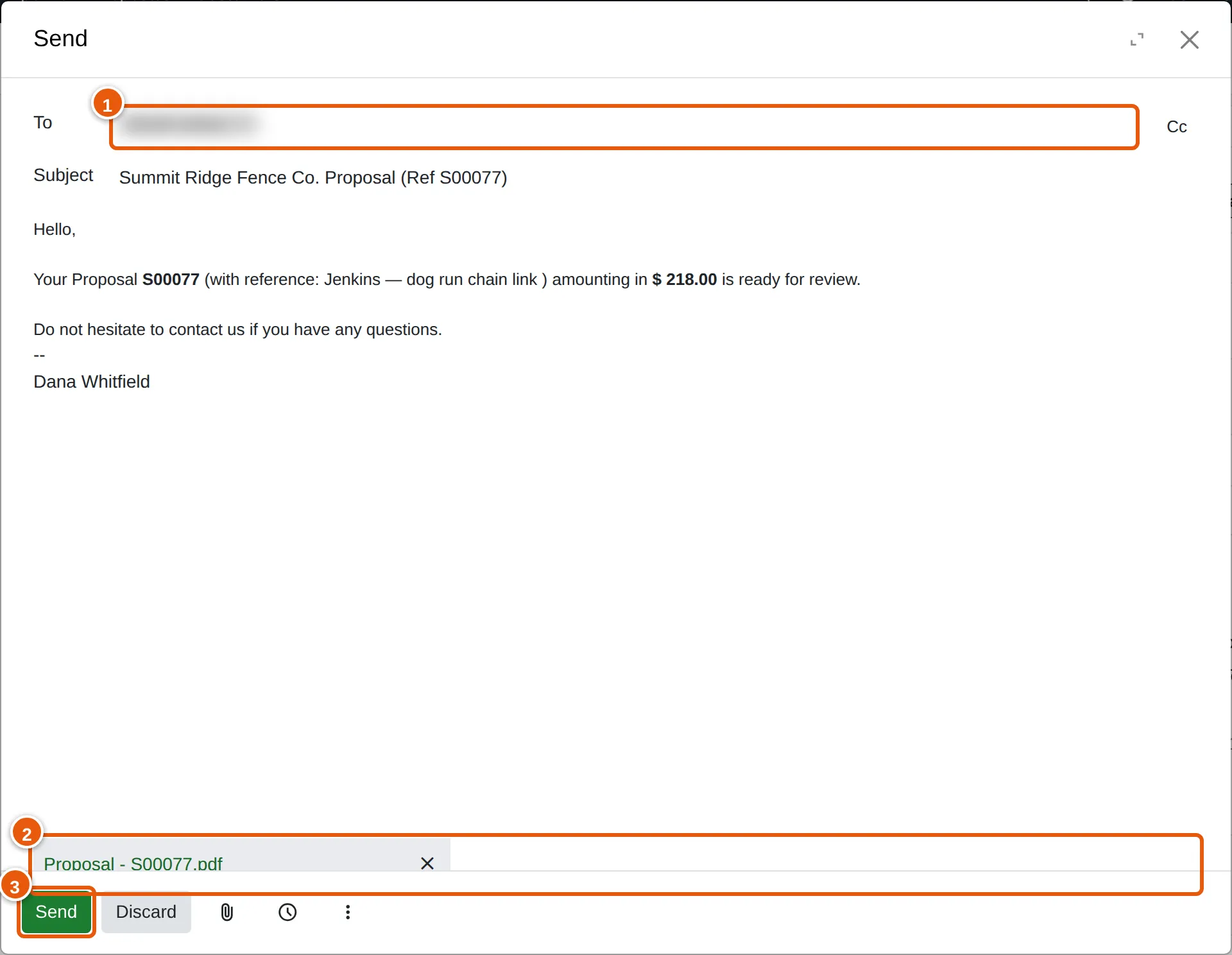
Back on the proposal, click Send. Check who it goes to (1) and the email text. The proposal PDF is attached (2).
-
Click Send (3). The proposal moves to Proposal Sent.
When your customer accepts, open the proposal and click Confirm. It becomes a contract order.